
Getting started with AzitSplit: Register your API key
AzitSplit uses a Gemini API key from your own Google account for its AI features, such as picking key sentences, writing titles and fixing typos. Google gives you the key for free, and once it's registered there's nothing more to do. Follow the screens below in order.
(The screenshots show the Korean version of the screens. The buttons are in the same places in English.)
What you need
- A Google account (a Gmail address). The one you use every day is fine.
- No card is needed.
1. Open the API window in AzitSplit
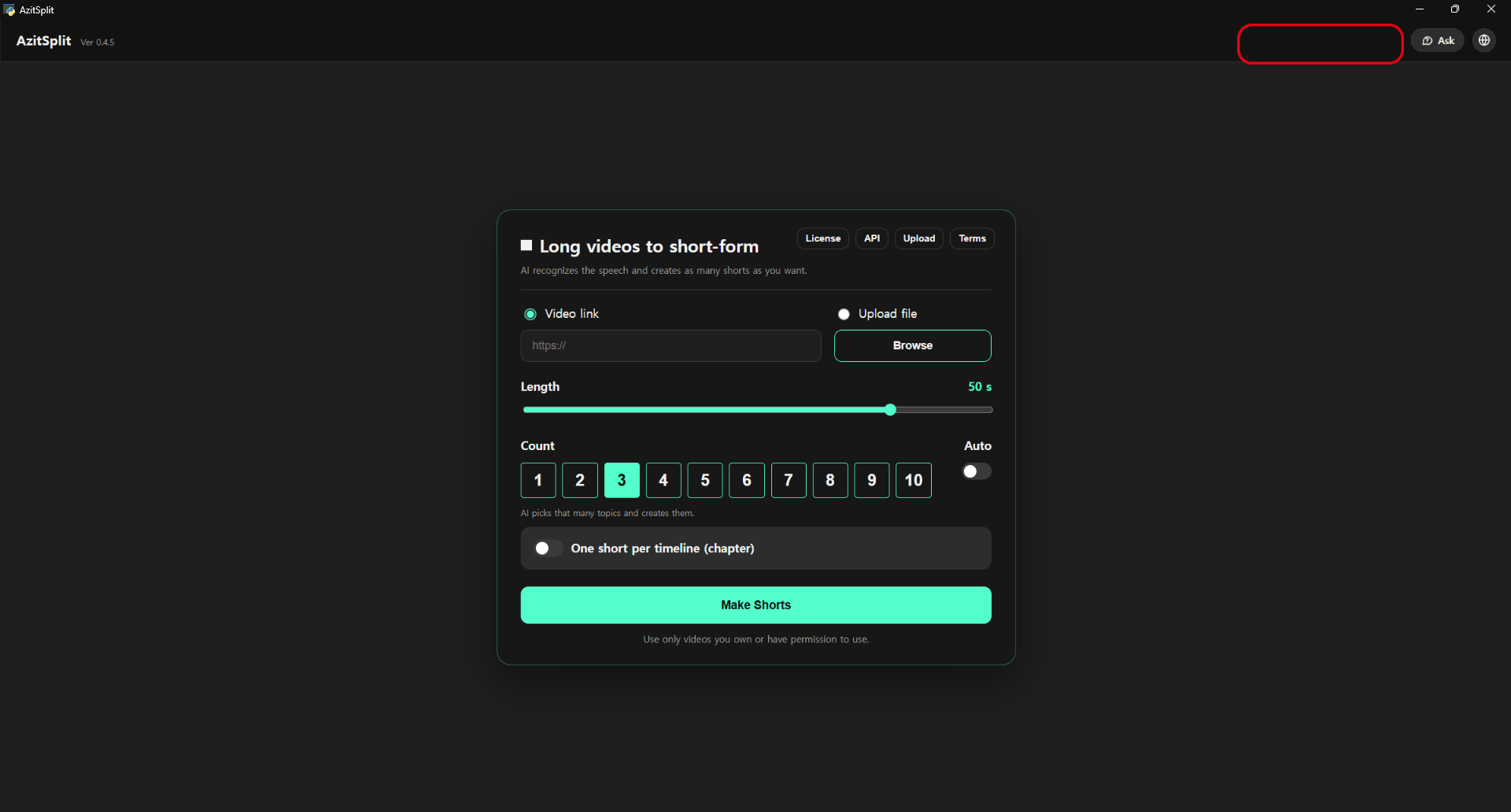
If no key is registered, a red [No Gemini key] badge shows at the top right. Click it, or the [API] button on the start screen. On the work screen, [API] is in the ⚙ menu.
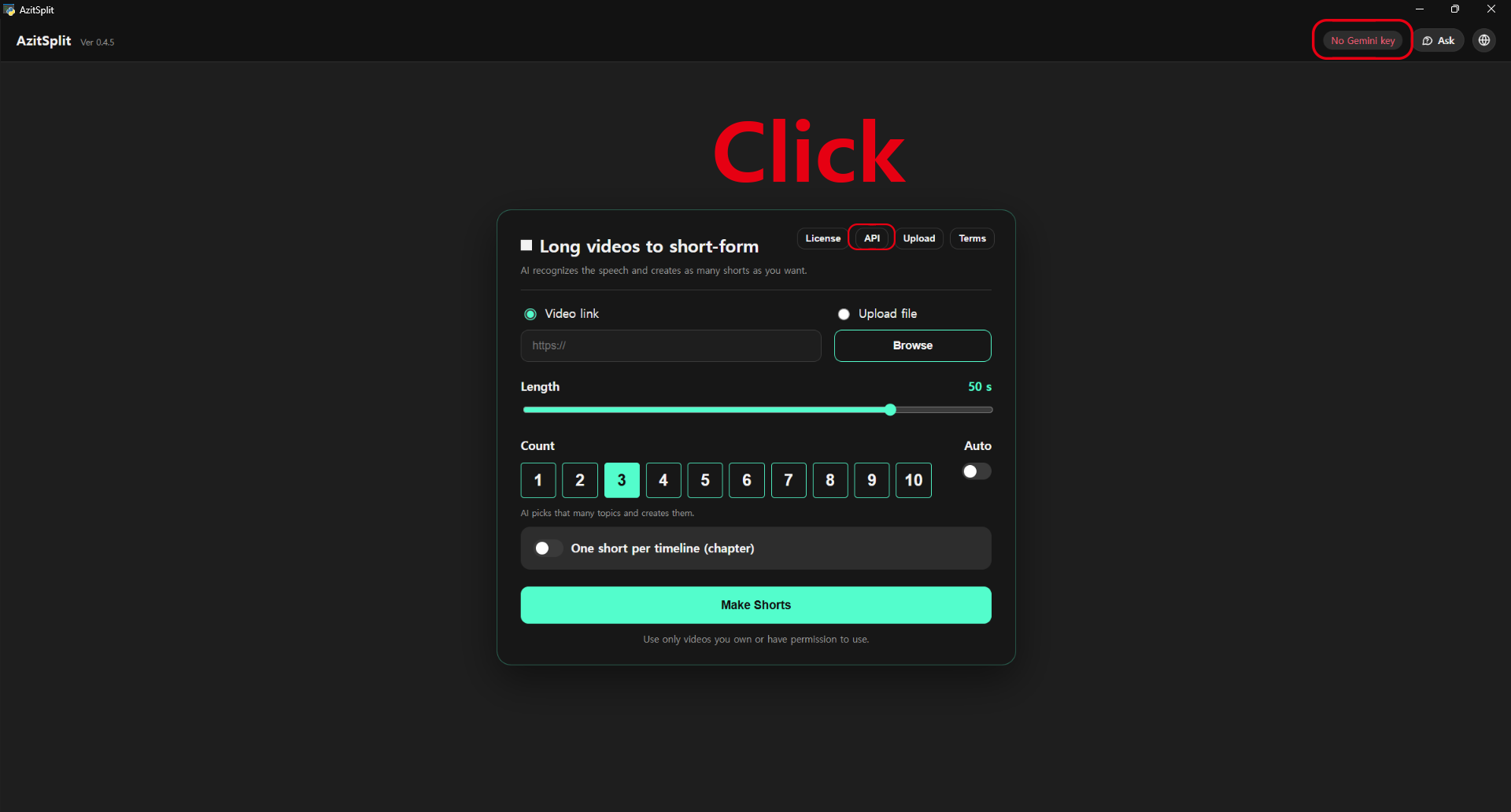
When the API window opens, click [Get a free key]. Google AI Studio's key page opens. You can also go there directly by typing aistudio.google.com/apikey in your browser.
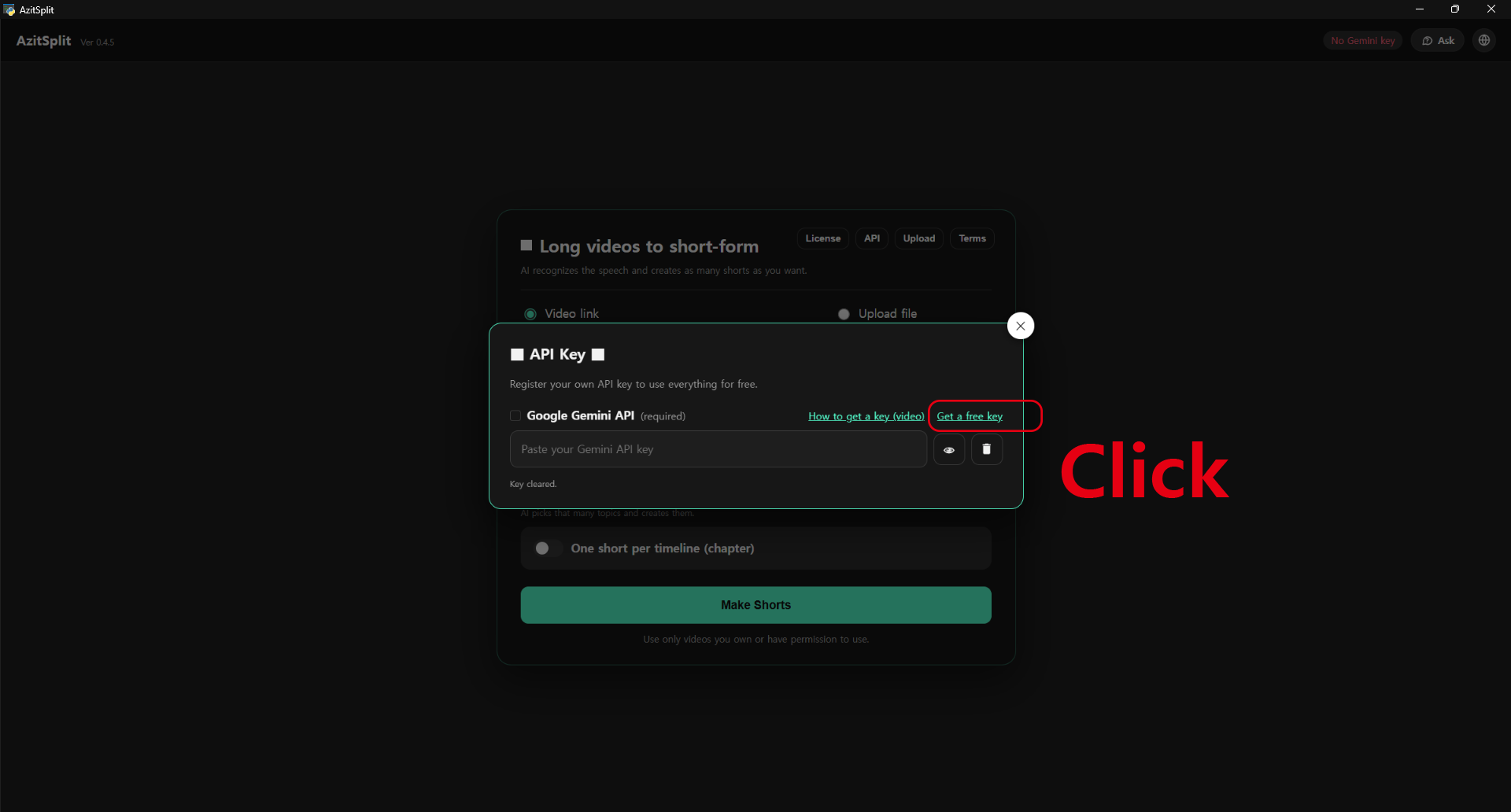
2. Sign in with your Google account
If a sign-in screen appears, sign in with your Google account. If you're already signed in, skip this step.
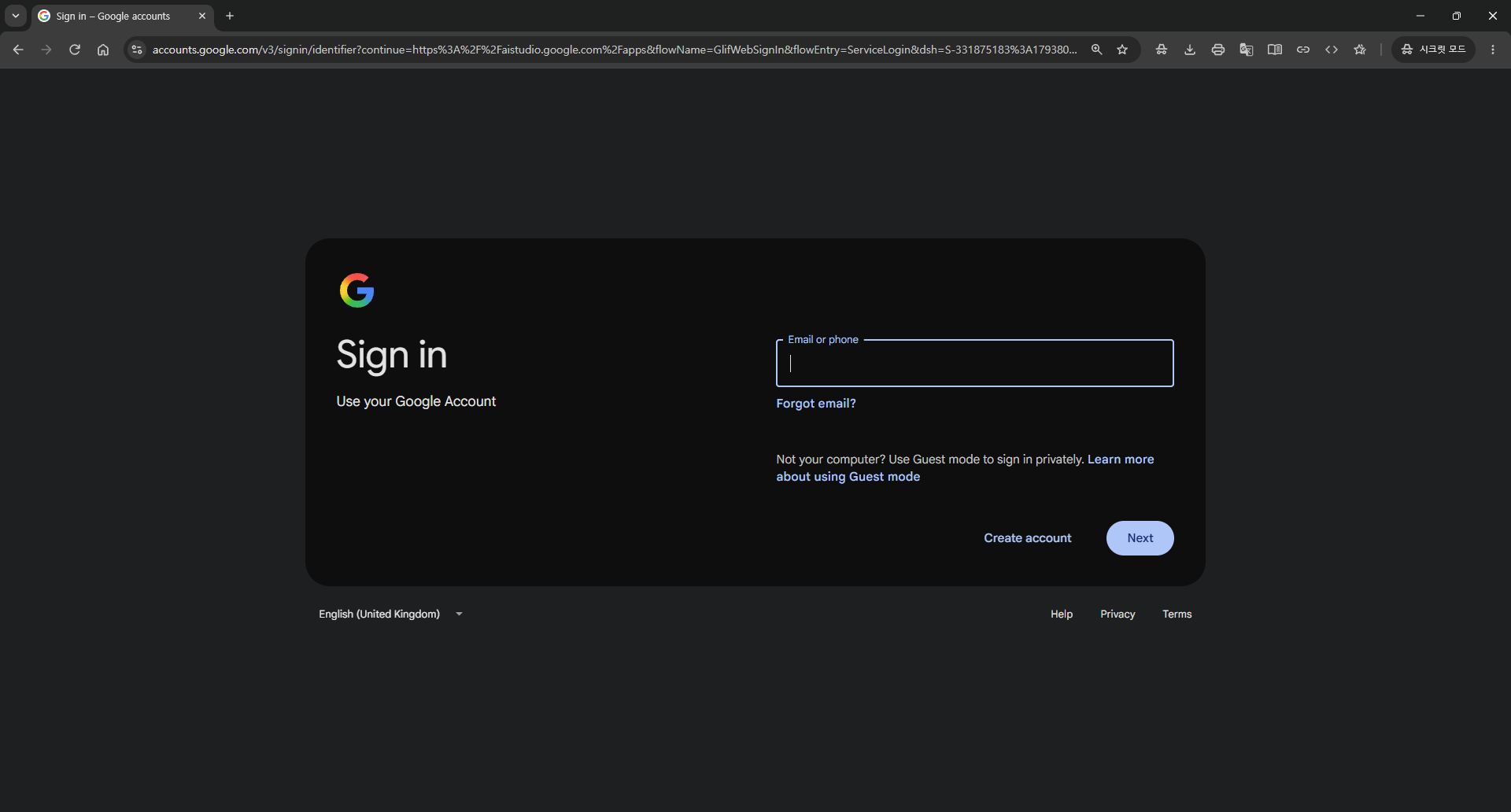
3. Create and copy a key
What you see after signing in depends on your account. Follow whichever of the two below matches.
A. If a terms window appears (first time using AI Studio)
① Check the consent box at the top and ② click [Continue]. You don't need to check the newsletter boxes below it.
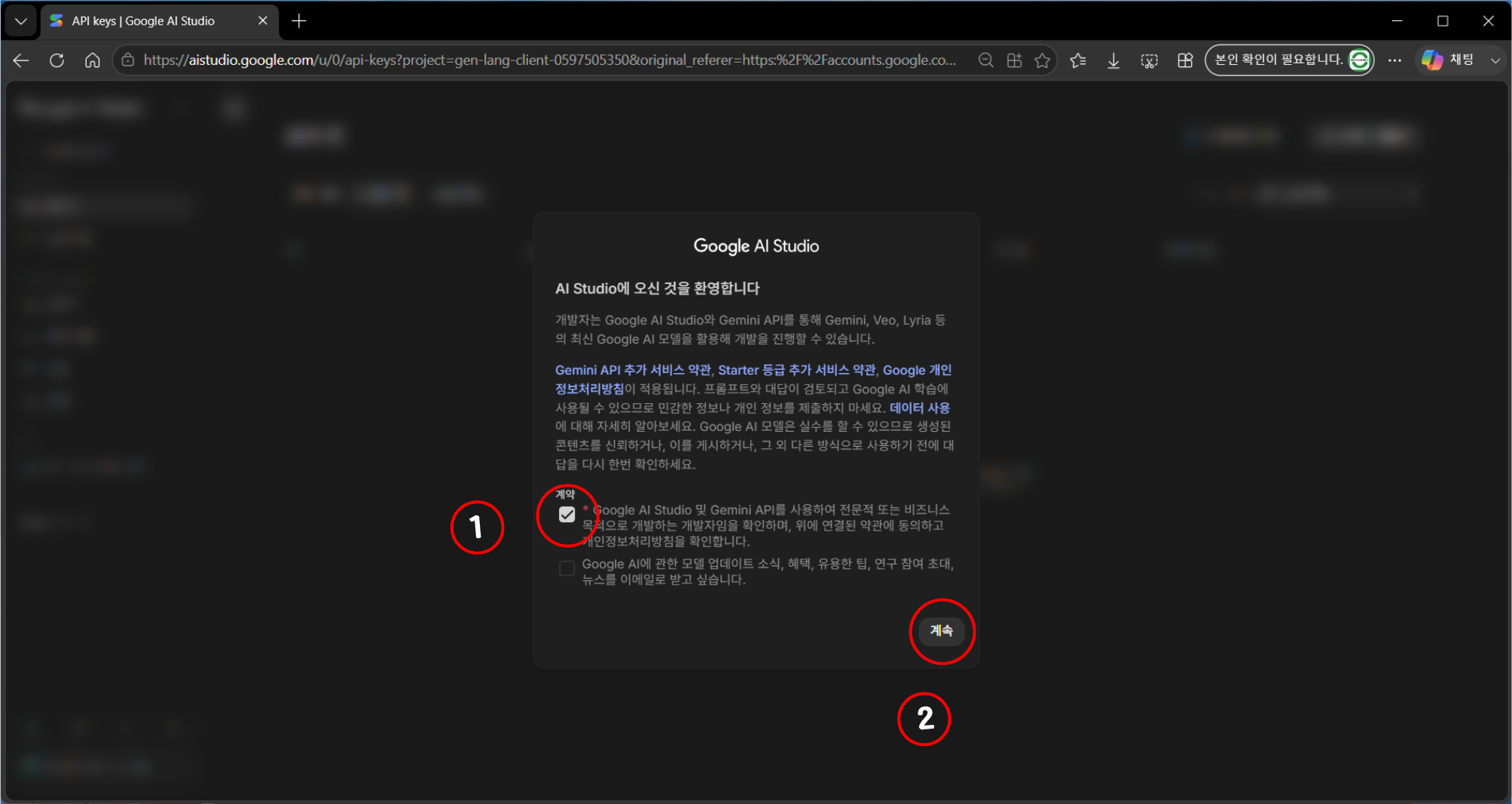
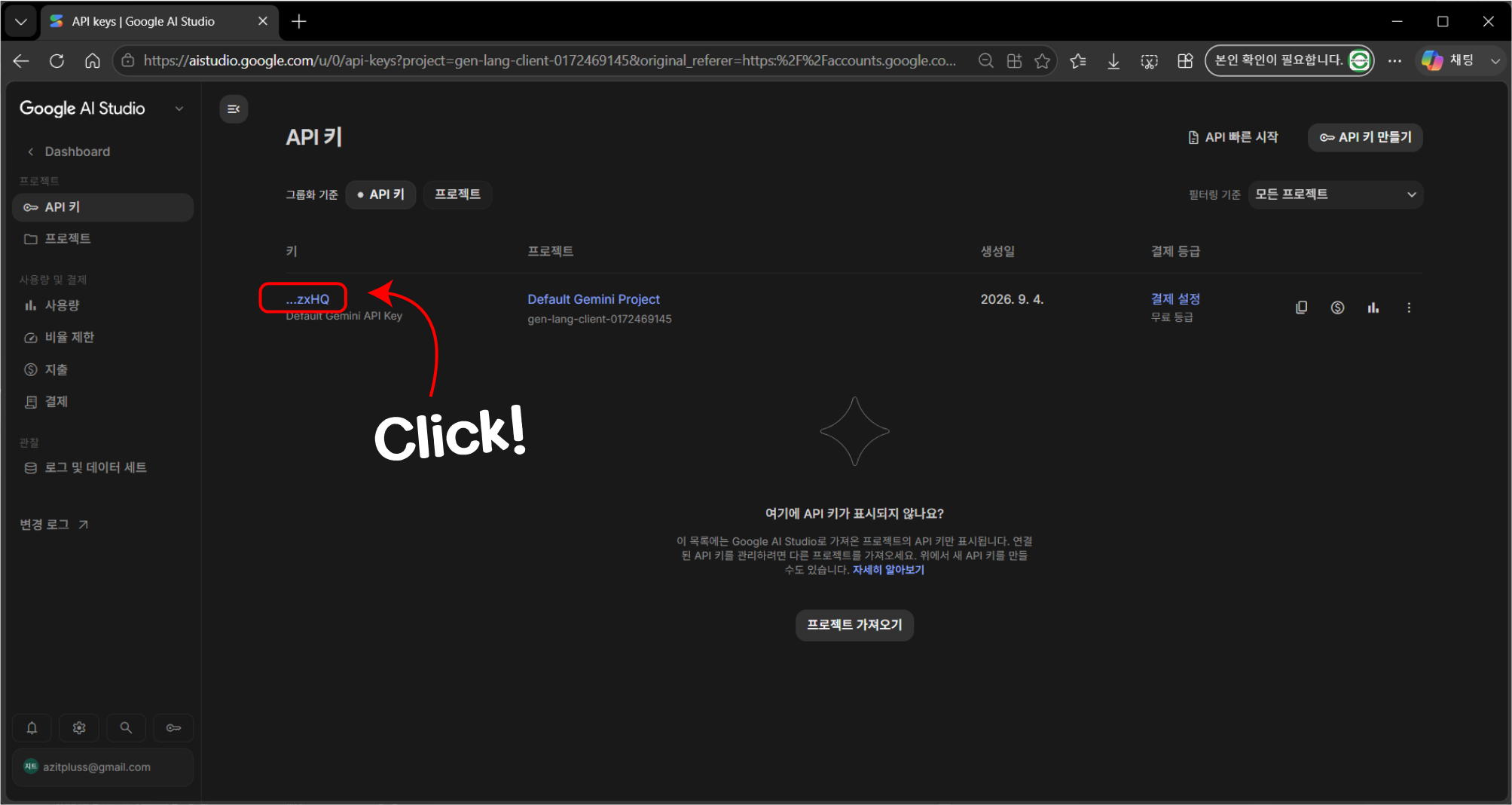
Once you agree, a default project and key (Default Gemini API Key) are created automatically and the key list appears. Click the key in the list.
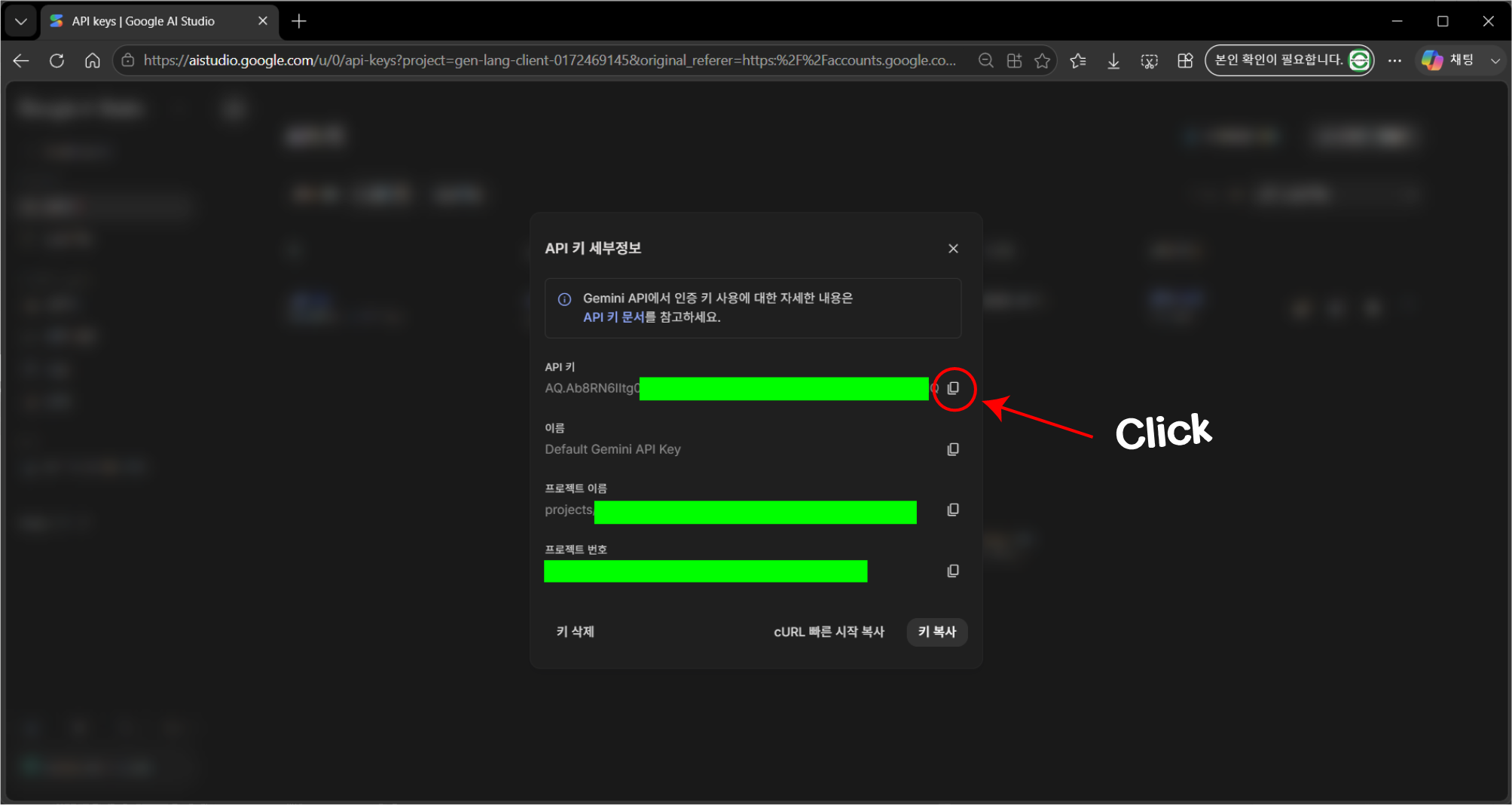
When the key details window opens, click the copy icon next to the API key. Now go to step 4.
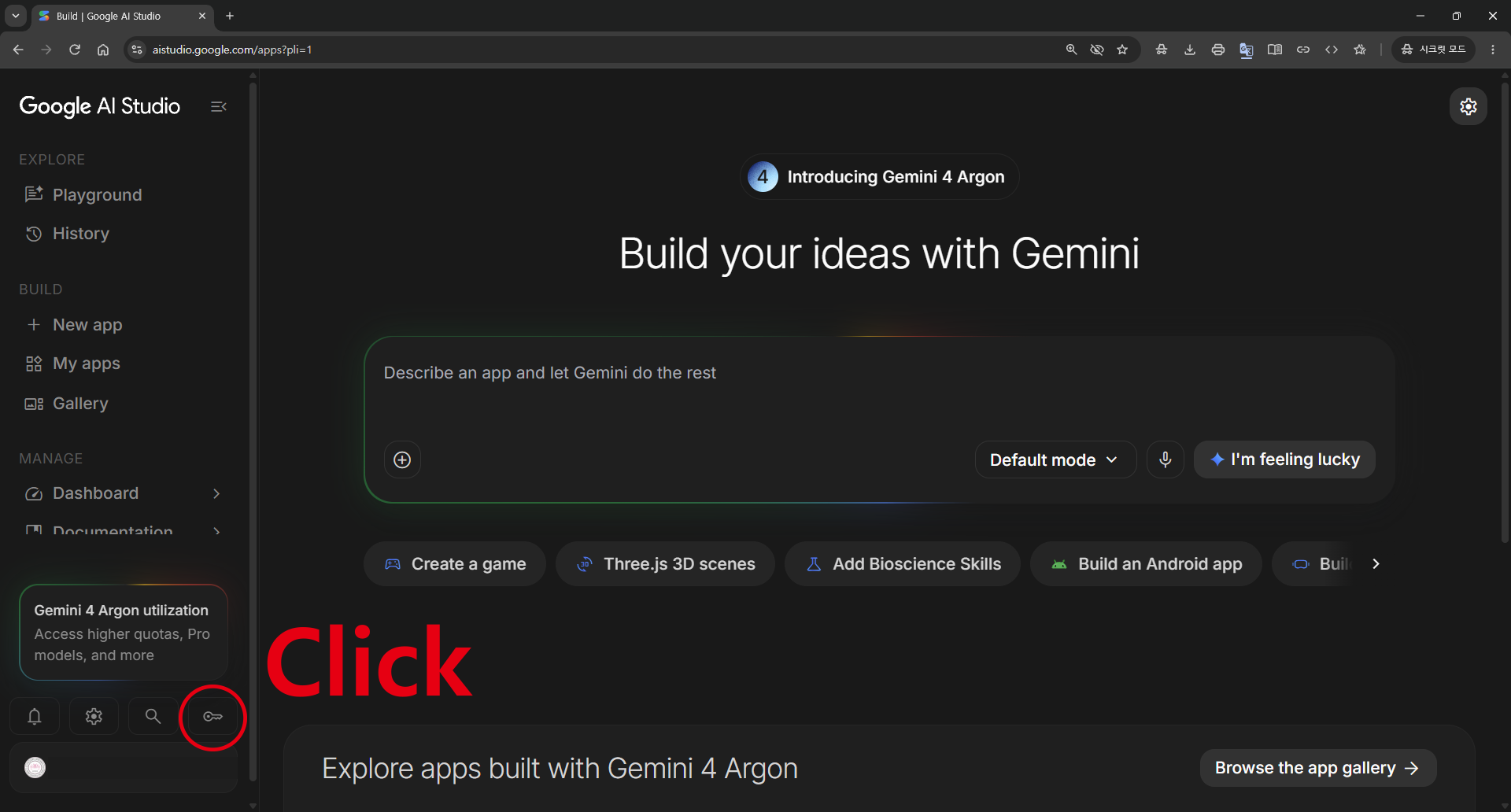
B. If the AI Studio home screen appears (you've used it before)
Click the key icon at the bottom left. This takes you to the API key list.
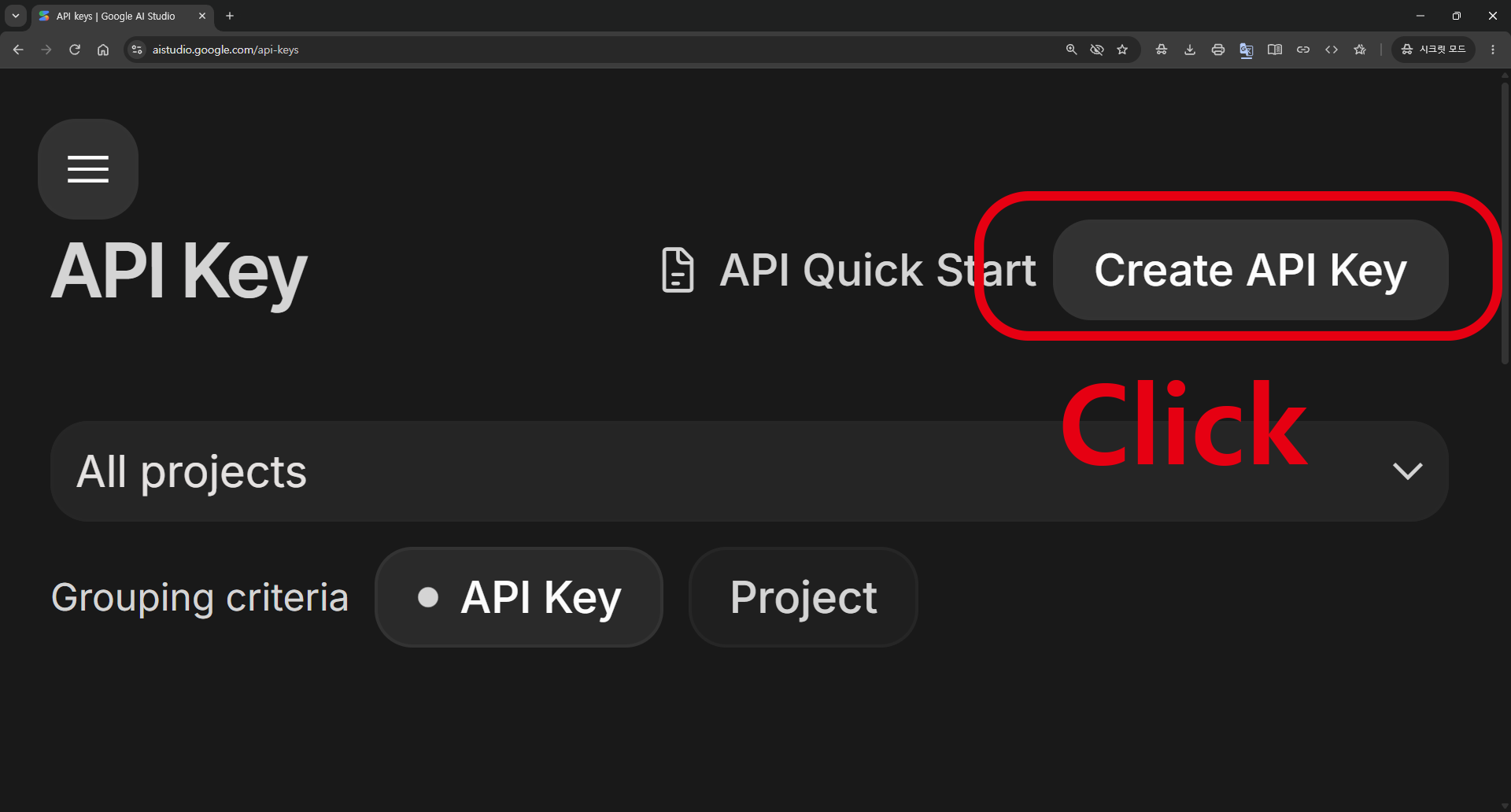
Click [Create API Key] at the top right. If there's already a key in the list, you can click it and copy it, like the last two screens in A.
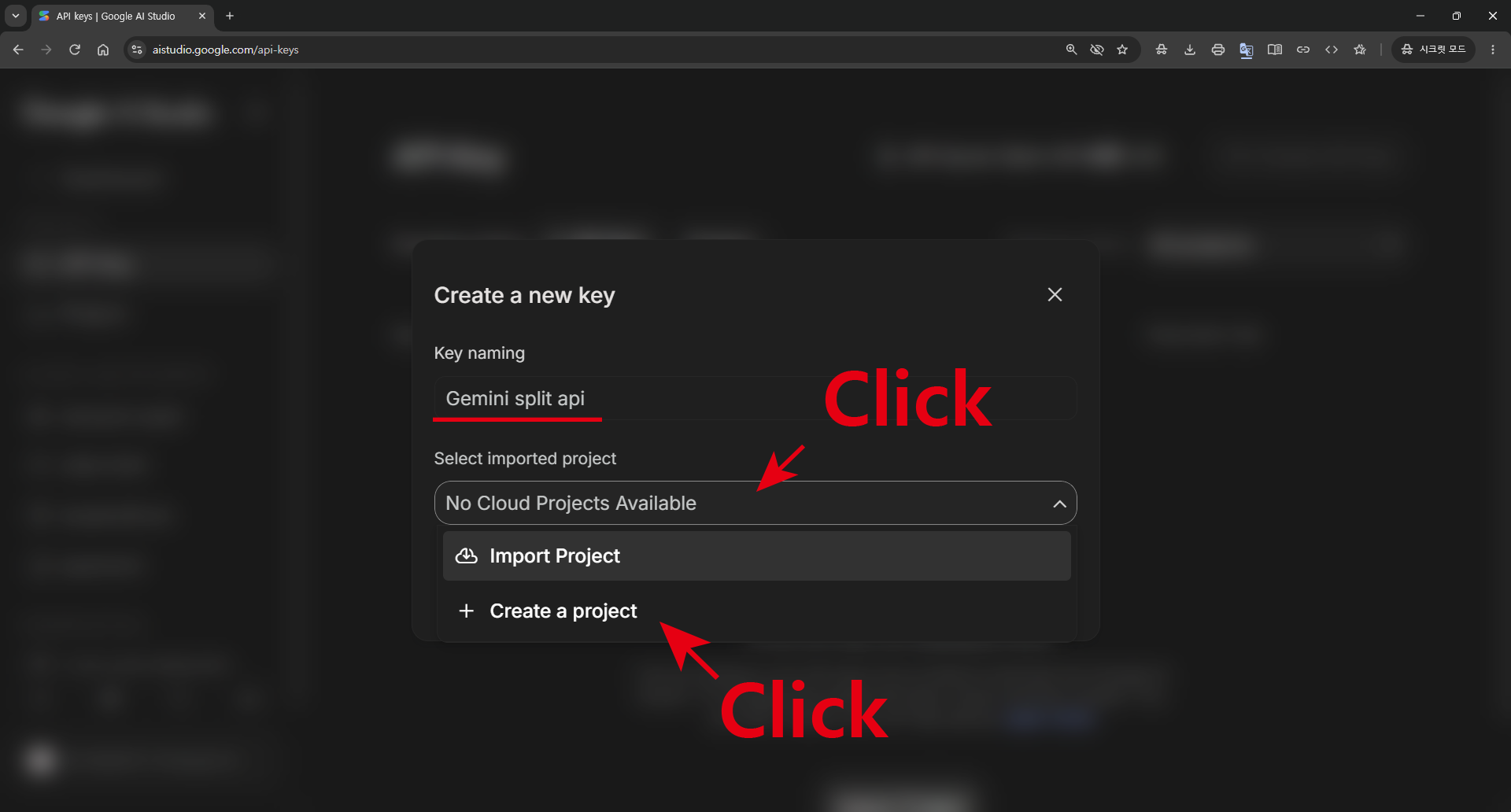
Type a key name (for example, Gemini split api), then click the project field and choose [Create a project].
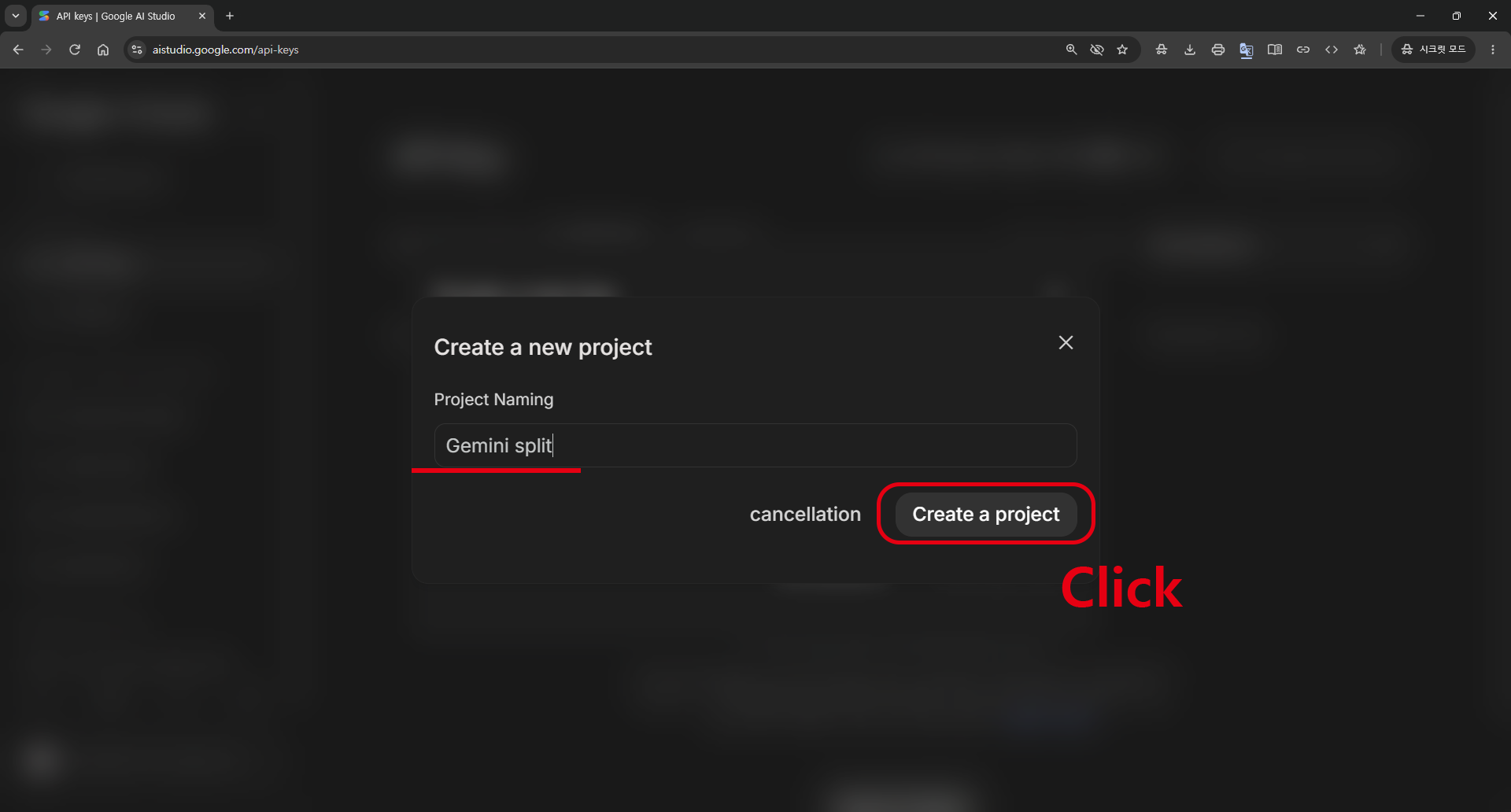
Type a project name (for example, Gemini split) and click [Create project].
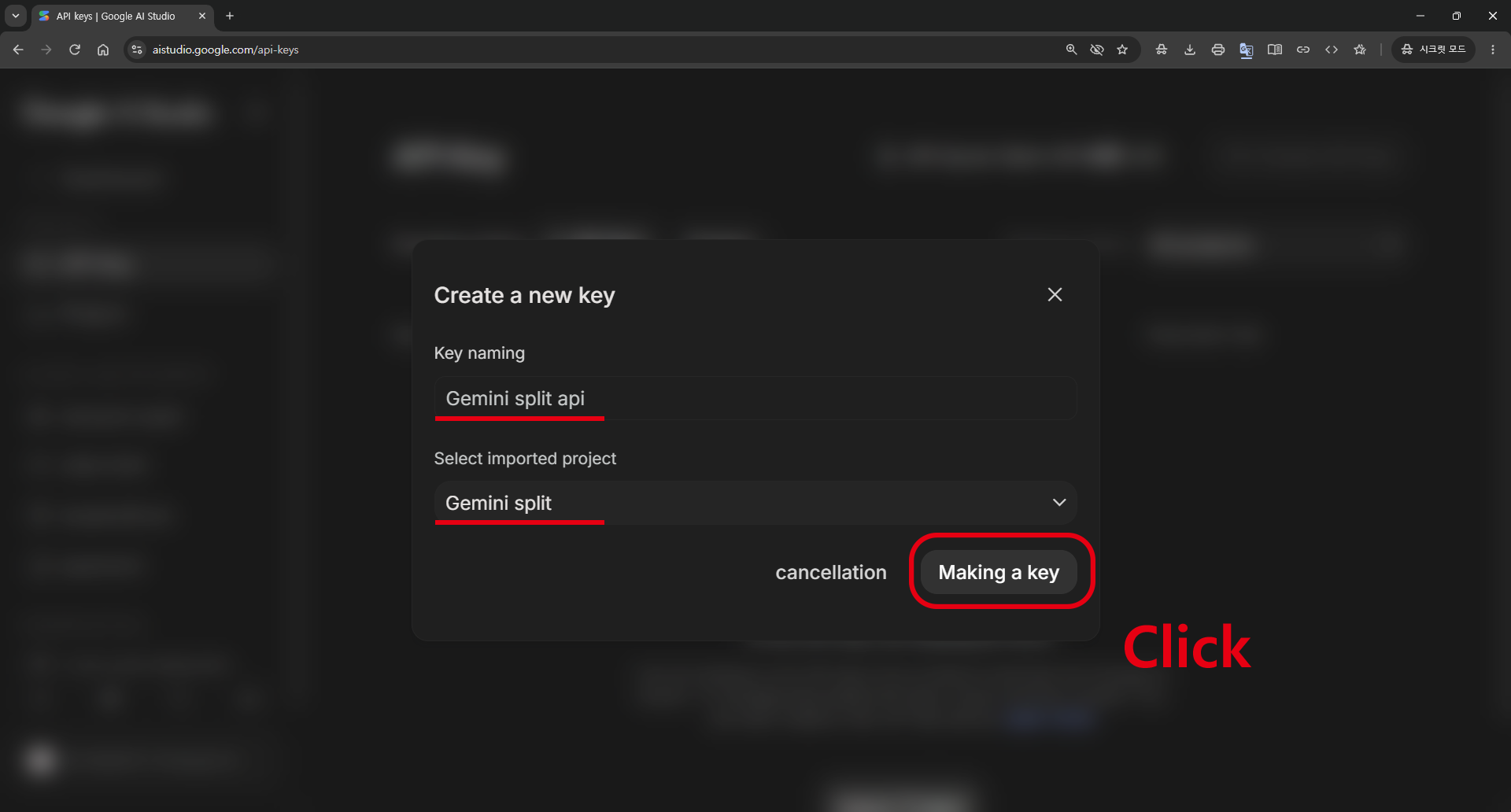
Make sure the project you just made is selected, then click [Create key].
When the key details window opens, click the copy icon next to the API key. The key is a long string starting with AQ..
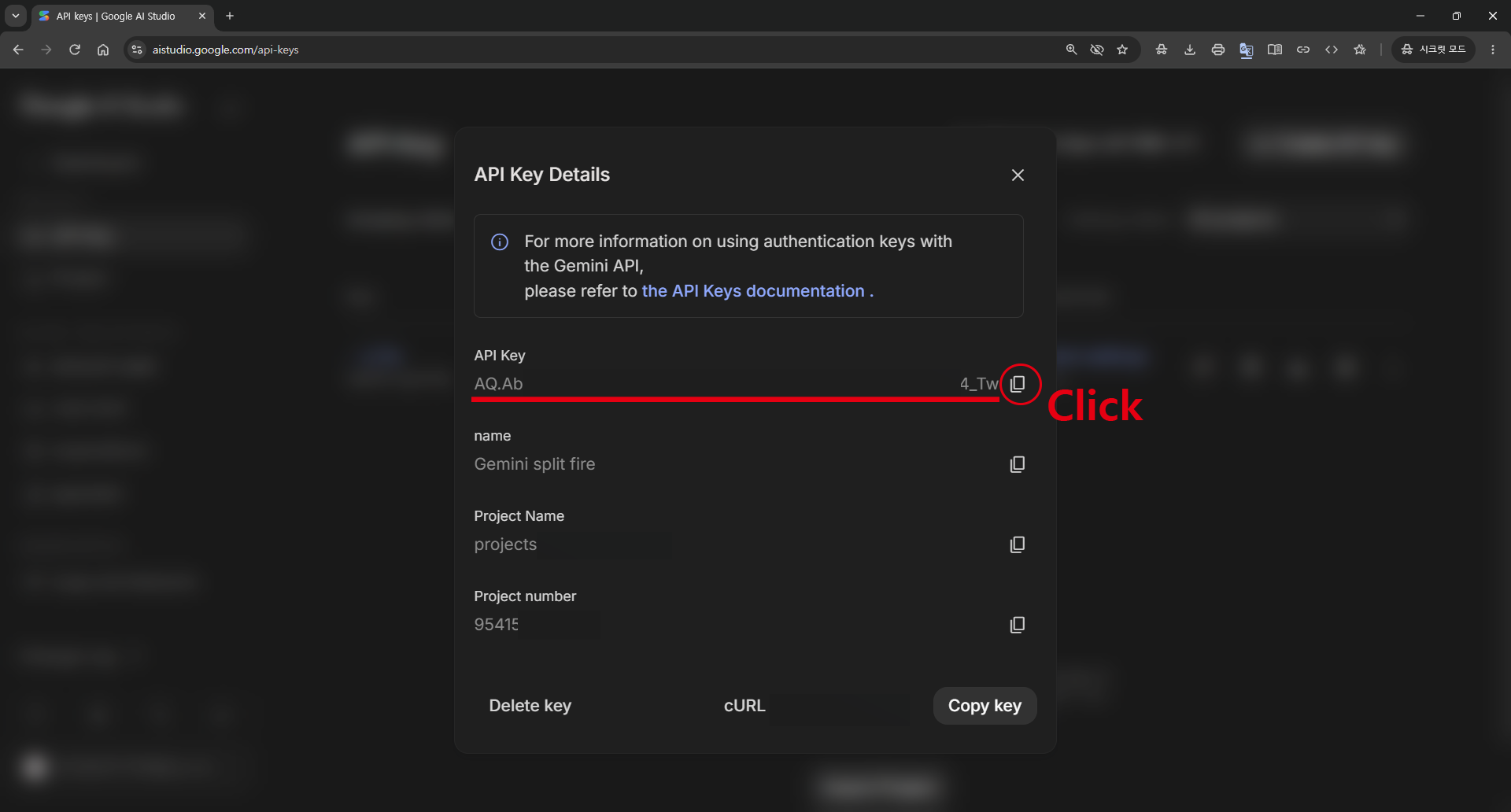
Treat this key like a password. Don't send it to anyone or post it online. If someone else has seen it, delete it with [Delete key] in the same window and make a new one.
4. Paste it into AzitSplit
Go back to AzitSplit's [API] window and paste the key into the key field (Ctrl+V). There's no save button: it saves automatically when you paste, and Saved. appears under the field.
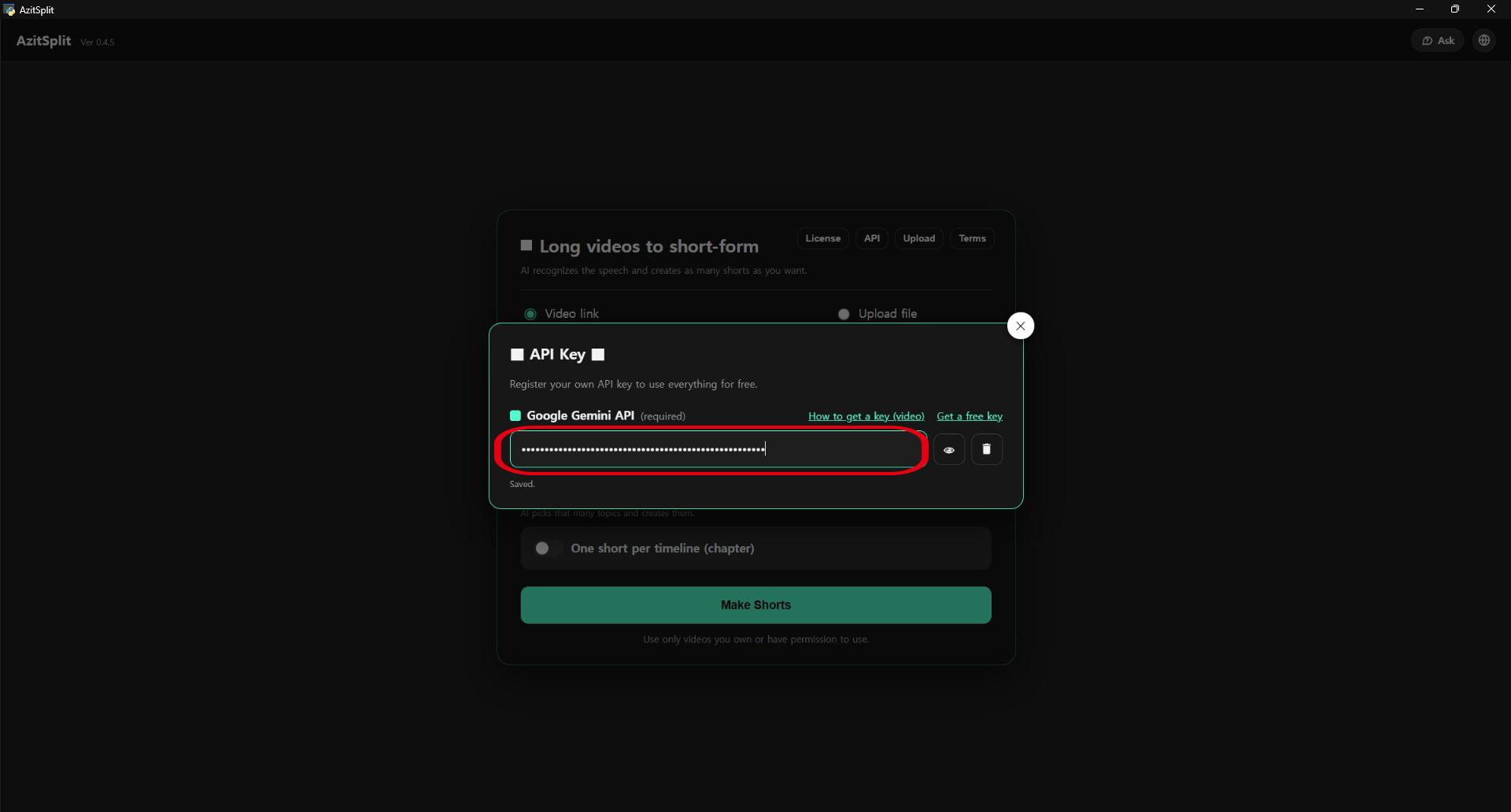
Close the window and the red [No Gemini key] badge at the top right disappears. You can now use the AI features.
Check or change the key
- The eye button next to the key field in the API window shows the key you pasted.
- To use a different key, delete it with the trash button and paste the new one.
Common questions
Is it really free? Google gives Gemini API a free usage tier. The Flash models AzitSplit uses work within that free tier, and if you haven't linked billing, you won't be charged. Note that under Google's policy, content sent on the free tier may be used to improve Google's services. If that concerns you, link billing in Google AI Studio and use it as a paid service.
It says "The Gemini server is busy." Using AzitSplit alone won't use up the free tier. This message appears when Google's servers are crowded and free users are pushed back in the queue. Wait a moment and try again. If you use the same key in other apps too, it's best to create a new project as in step 3B and use a key just for AzitSplit.
It says "Your Gemini API key isn't valid." The key was deleted at Google or pasted incorrectly. Check the key in Google AI Studio or create a new one, then delete the old one with the trash button in the [API] window and paste it again.
I lost my key. Go back to aistudio.google.com/apikey and you'll see the list of keys you've made. Click a key to copy it again, or make a new one.
I'd rather watch a video. Click [How to get a key (video)] in AzitSplit's [API] window to watch the same steps as a video. English subtitles are available.
If you get stuck, click [Ask] at the top right of the app or email support@azitplus.com.
Next, take a look at each part of the screen: continue with Getting started with AzitSplit: The screen.
AzitSplit listens to a long video on your PC and splits it into several Shorts with subtitles and titles. Make up to 10 for free with the trial.
Learn more about AzitSplit