
Getting started with AzitSplit: The screen
The AzitSplit start screen is where you choose which video to use, how long each Short is and how many to make. Here is each part in order.
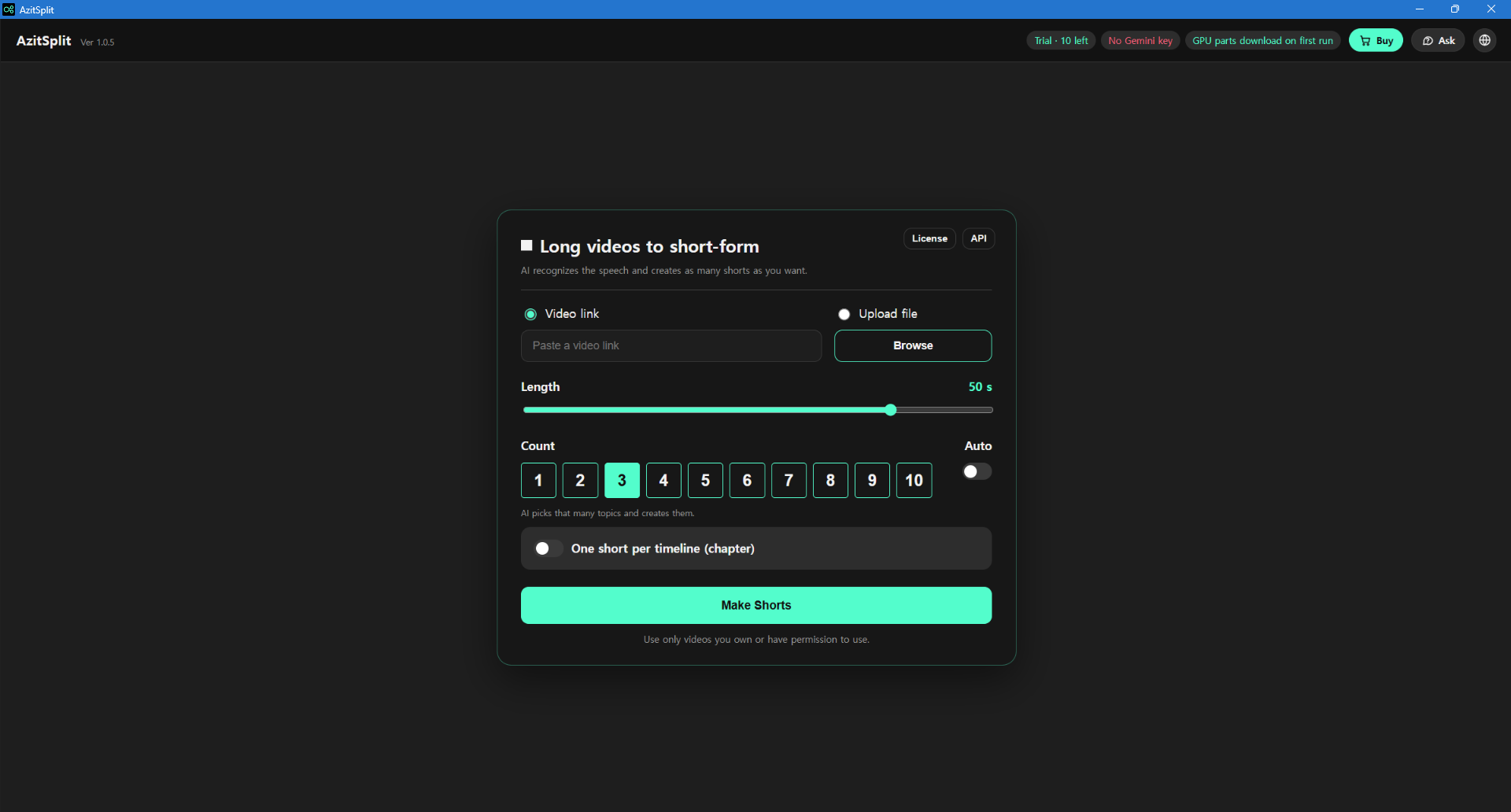
The top bar
On the left are the app name and the current version (e.g. Ver 1.0.6). On the right are these buttons and status chips:
- Status chips: appear only when there's something to tell you.
- "Trial · N left": how many trial Shorts are left. Click it to open the License window.
- "No Gemini key": you haven't registered an API key yet. Click it to open the API window.
- "GPU parts download on first run": the parts for your NVIDIA graphics card are downloaded on your first job.
- "CPU transcription": it works without a graphics card, but takes longer.
- [Buy]: opens the window for buying the full version. Shown only on the trial.
- [Ask]: opens the help assistant.
- Globe: picks the display language: Korean, English, Japanese, Spanish, Portuguese, German or Indonesian.

On the full version with a key registered, the chips and [Buy] disappear and only [Ask] and the globe remain.

Parts of the start screen
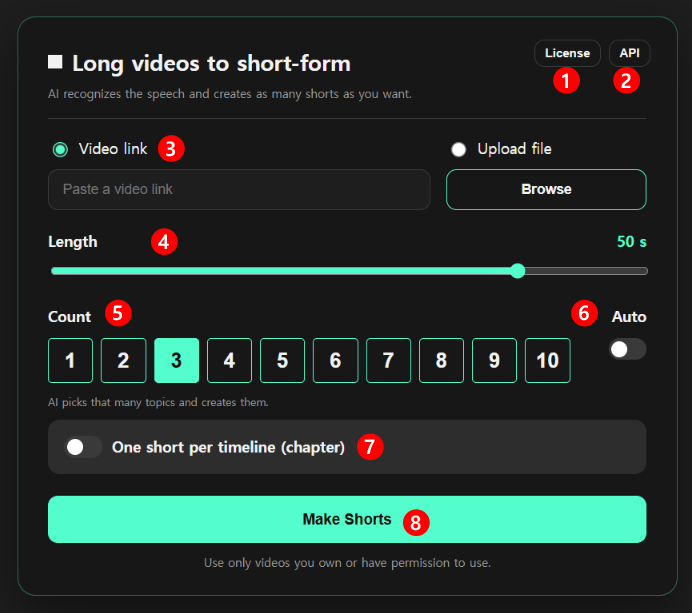
- [License]: check trial Shorts left, register a license key, buy or restore a purchase.
- [API]: register your Gemini API key. See Register your API key.
- Video link / Upload file: paste a video link into "Video link", or use [Browse] under "Upload file" to pick a video on your PC.
- Length: the target length of each Short, from 20 to 58 seconds (50 by default).
- Count: from 1 to 10 Shorts (3 by default). The AI picks that many topics.
- Auto: when on, skips the Review step and goes straight to the finished videos.
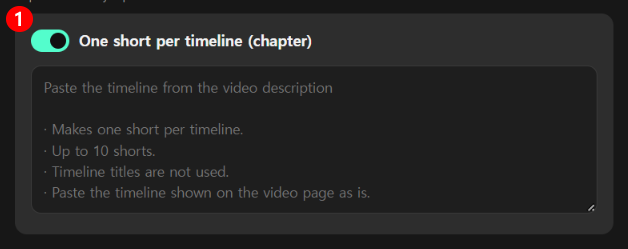
- One short per timeline (chapter): when on, an input box appears.
- [Make Shorts]: starts the job.
For your first run, we recommend leaving Auto off and choosing 2–3 Shorts, so you can check what the AI picked.
One short per timeline (chapter)
Paste the timeline from the video description as is, and it makes one Short per section (up to 10). Count isn't used in this case, and the timeline titles aren't used either.
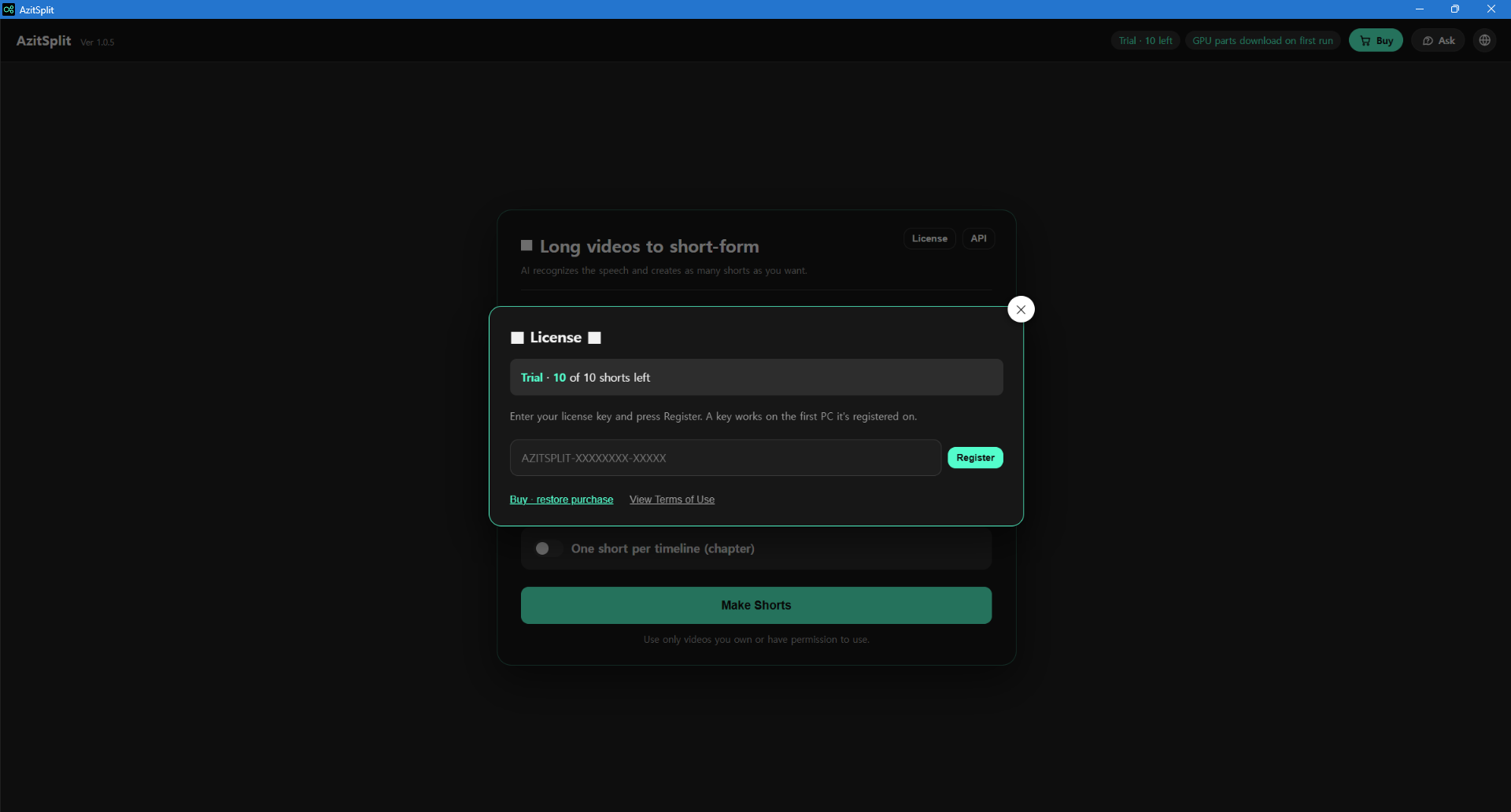
The License window
Click [License] to open it. It shows how many trial Shorts are left. If you received a license key from a reseller, paste it here and click [Register]. "Buy · restore purchase" and "View Terms of Use" are here too.
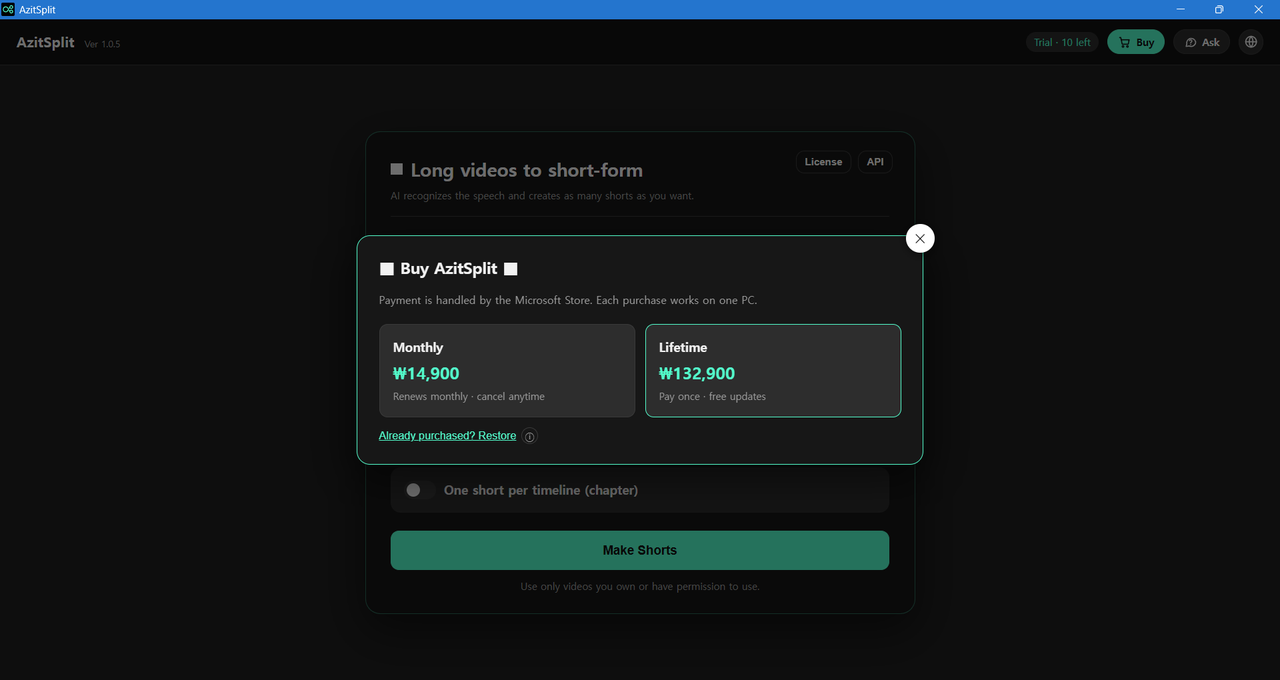
The Buy window
Click [Buy] to choose between Monthly and Lifetime. Payment is made through the Microsoft Store. See Trial and full version for details.
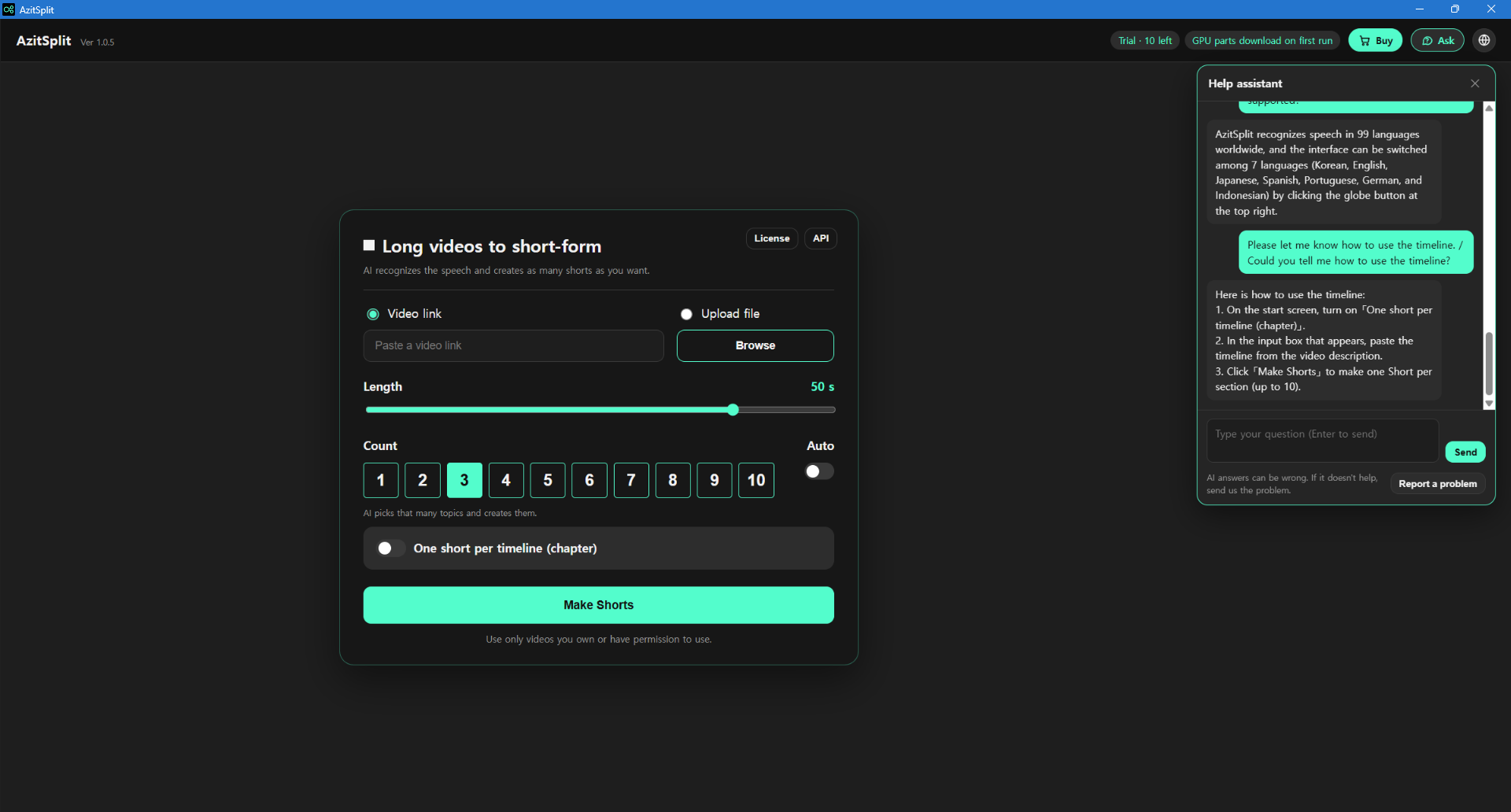
Ask
Click [Ask] to open the help assistant on the right. Type your question and press Enter, and the AI answers based on the manual and the help articles. It uses your registered Gemini API key, and AI answers can be wrong.
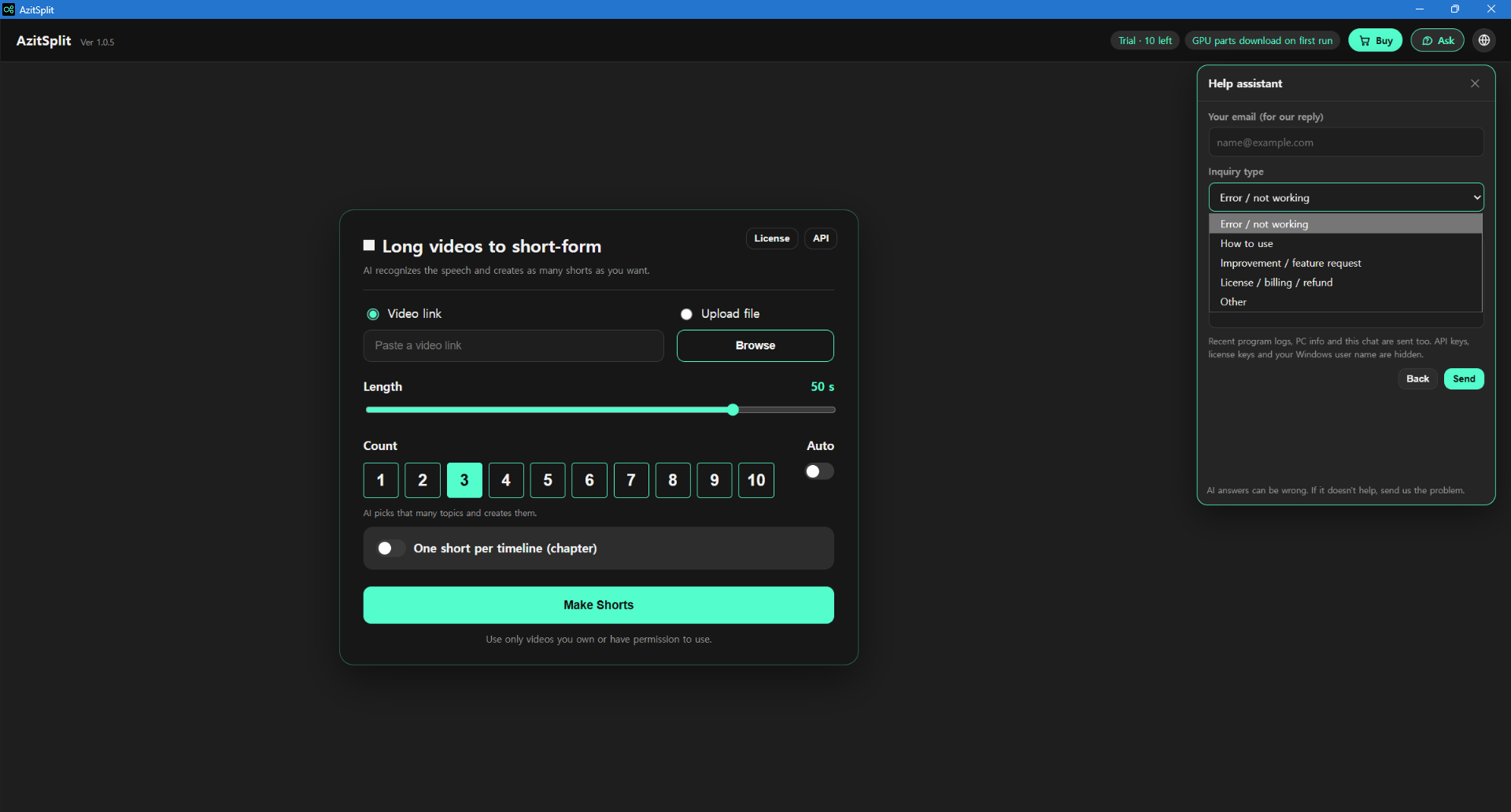
If that doesn't solve it, click [Report a problem]. Enter your email for our reply, choose an inquiry type (Error / not working, How to use, Improvement / feature request, License / billing / refund, Other), write the details and click [Send], and we'll reply by email. Your API key, license key and Windows user name are hidden before sending.
The progress screen
When you click [Make Shorts], the job runs in 5 steps. A circle spins on the current step, and the elapsed time is shown below.
- Download: checks the video.
- Transcribe: writes down the speech as text. The first time takes longer because the speech recognition model (about 1.6GB) is downloaded once.
- AI select: the AI fixes typos and picks the sentences for each Short.
- Review: you check and adjust what the AI picked.
- Render: the video files are made.
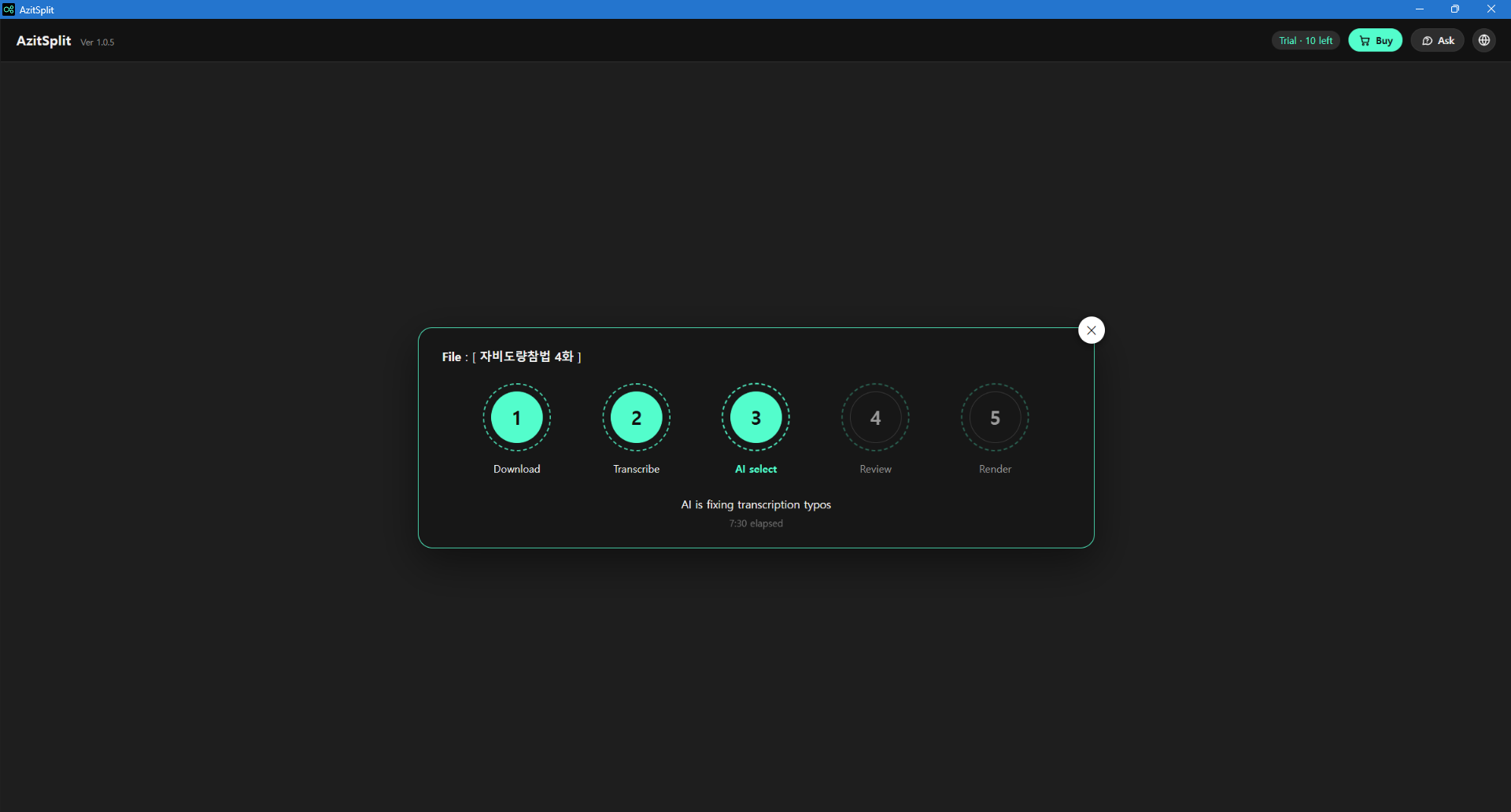
Click ✕ at the top right to stop the job.
Now it's time to make your first Shorts: continue with Getting started with AzitSplit: Get started.
AzitSplit listens to a long video on your PC and splits it into several Shorts with subtitles and titles. Make up to 10 for free with the trial.
Learn more about AzitSplit